
Choosing the Right Laptop for Work and Everyday Use
A practical guide to choosing a laptop by workload, performance, memory, storage, display, portability, battery, ports, software support, and total ownership cost.
Media disclosure: Images and the embedded video use AI-generated illustrations and AI-assisted production. The presenters and product visuals are fictional or generic. This content is based on published information and buying considerations, not hands-on testing..
Introduction

The right laptop is not simply the fastest model you can afford. It is the machine that handles your regular work comfortably, fits the way you travel or set up at home, and remains useful for the years you expect to keep it.
For a Philippine buyer, that may mean moving between home, school, a co-working space, and the office; joining video calls on shared internet; or working through occasional power interruptions. Start with those real conditions. Then compare the exact configuration sold locally, because laptops with the same family name can differ in processor, memory, storage, display, battery, ports, and warranty.
At a Glance Key Factors
Factor | Why it matters | What to verify |
|---|---|---|
Workload | Your applications determine the performance and features worth paying for. | List current tasks, required software, file sizes, and likely needs over the next few years. |
Processor and graphics | These affect responsiveness and demanding workloads, but names alone can mislead. | Check the chip, power class, graphics, cooling, and credible reviews of the same configuration. |
Memory and storage | They shape multitasking, capacity, and upgrade options. | Confirm installed capacity, whether parts are soldered, open slots, storage type, and usable space. |
Display and input | You look at and touch these parts throughout the day. | Check brightness, resolution, panel quality, keyboard layout, touchpad, webcam, and comfort. |
Mobility and battery | Size, weight, charger, and endurance affect travel and flexible work. | Compare complete carrying weight and realistic battery findings—not only advertised maximums. |
Support and ownership | Warranty, repair access, updates, and accessories affect long-term value. | Verify Philippine coverage, service locations, parts, software support, and total setup cost. |
Start With Your Real Workload
Write down what you do in a normal week. Email, documents, spreadsheets, browser research, streaming, and video calls are different from large data sets, software development, 3D work, modern games, or high-resolution video editing. Include the applications required by your employer or school and check their official system requirements.
Also note how you work. Someone who carries a laptop on the MRT or between classes may accept a smaller screen for lower weight. A home-based user may prefer a larger display, full-size ports, and an external keyboard or monitor. Buy for the demanding tasks you actually expect—not a vague possibility that may never happen.
Choose the Right Processor Class
Processor labels indicate a family, not the complete experience. Chips within one family can differ in generation, core design, power limits, and integrated graphics. Laptop cooling and manufacturer settings can also affect how long performance is sustained.
For office work, web use, calls, and media, a current mainstream processor is usually a more balanced target than a high-power chip paired with weak battery life or a poor display. Heavier editing, engineering applications, virtual machines, large code builds, or demanding games may justify more performance. Compare benchmarks that represent your applications and reviews of the exact laptop configuration.
Match Memory to Multitasking
Memory, or RAM, holds active applications and data. Running many browser tabs, office apps, calls, and background tools at once uses more memory than basic single-task use. For many current everyday workloads, 16 GB provides useful breathing room, but the right amount depends on the operating system, applications, and planned ownership period. Light use may need less; professional creative work, virtual machines, and large projects may need more.
Check whether memory is soldered, installed in slots, or partly upgradeable. If it cannot be expanded, choose enough at purchase. Do not confuse virtual or shared memory marketing with physical RAM.
Buy Enough Storage and Plan Backups
A solid-state drive makes a modern laptop feel responsive and is the normal choice for the operating system and applications. Capacity disappears quickly after system files, updates, cloud sync, photos, downloads, and project files are included. Many general users find 512 GB a practical starting point, but a lighter cloud-based routine may use less, while games and media projects can require 1 TB or more.
Verify the storage type, installed capacity, open expansion slots, and whether upgrading affects warranty. External drives and cloud storage can add capacity, but neither replaces a proper backup. Keep important files in more than one location and protect sensitive data with appropriate encryption and account security.
Choose a Display You Can Use Comfortably
Screen size, resolution, brightness, contrast, color, reflections, and viewing angles all affect comfort. Full HD-class resolution is common for everyday work, while higher resolutions can improve detail but may use more power and increase cost. Creators should look for independently measured color coverage and accuracy rather than broad labels such as “vivid” or “professional.”
Glossy touchscreens can be convenient but may show stronger reflections. Matte finishes can suit bright rooms. A fast refresh rate can make motion smoother, but it is not a substitute for sufficient brightness, good contrast, or accurate color. If possible, inspect text, scrolling, dark scenes, and reflections in person.
Consider Size, Weight, Keyboard, and Touchpad

A compact laptop is easier to carry, while a larger chassis can provide more screen area, ports, cooling, and keyboard space. Compare the laptop plus its charger and any dongles you must carry. A thin design is less useful if it forces you to bring several adapters every day.
Keyboard comfort is personal. Check key spacing, travel, layout, backlighting, arrow keys, power-button placement, and number pad if needed. Test the touchpad for smooth tracking, clicks, and gestures. People who type for hours should treat these as core features, not minor details.
Compare Battery Life and Charging Carefully
Manufacturer battery figures are useful for comparison only when the test conditions are clear. Real endurance changes with screen brightness, processor mode, calls, Wi-Fi strength, connected devices, and the age of the battery. Look for independent testing that resembles your workload and remember that different reviews may use different methods.
Check charger size, connector, charging wattage, and whether USB-C charging is supported. A compatible power bank can help some laptops, but it must support the required charging standard and output. Use reputable, correctly rated chargers and cables. Damaged or swollen batteries should be serviced by qualified personnel, not pressed back into place or punctured.
Check Ports, Wireless Connections, and Docking
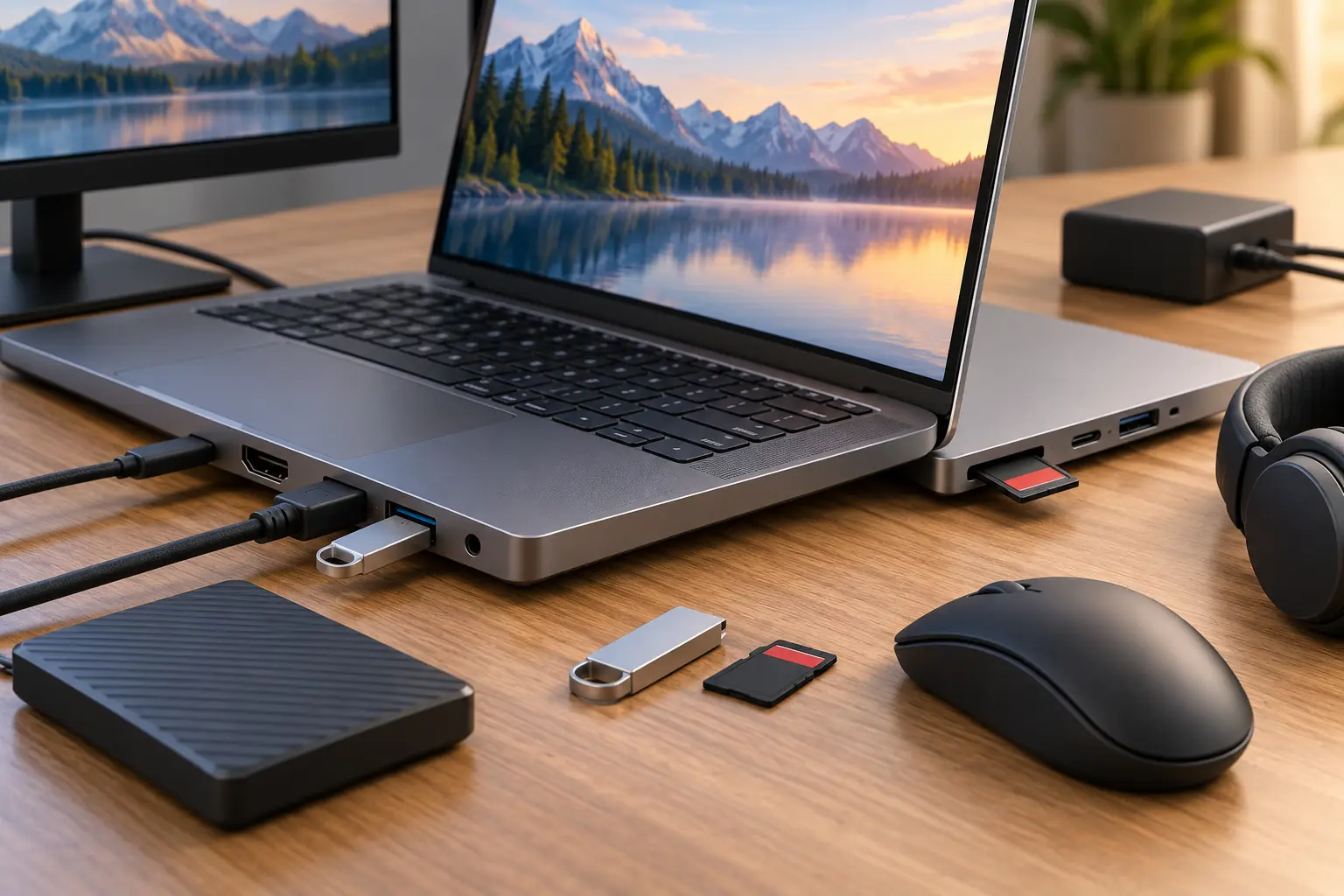
List what you connect: monitor, projector, external drive, mouse, headset, Ethernet, camera card, phone, or charging cable. Confirm the exact number and capability of each port. Two USB-C ports can support very different data speeds, display output, and charging features.
Check Wi-Fi and Bluetooth versions, but focus on compatibility with your router and accessories. If you plan to use a dock, verify display limits, power delivery, and operating-system support. An inexpensive hub may be adequate for basic accessories; multiple high-resolution displays and fast storage can require a more capable dock.
Decide Whether Dedicated Graphics Are Necessary
Integrated graphics can handle common office work, streaming, calls, light photo editing, and some casual games. Dedicated graphics may benefit 3D applications, demanding games, certain engineering tools, GPU-accelerated creative work, or supported local AI workloads. They usually add cost, power use, heat, and weight.
Confirm that your software actually uses the graphics hardware you are considering. A larger model name does not guarantee better sustained performance if power limits and cooling are restrictive.
Check Calls, Audio, and Everyday Workflows

For remote or hybrid work, review webcam detail, exposure, microphone clarity, speaker intelligibility, and background-noise handling. Resolution alone does not show how a webcam handles a dim room or bright window. Privacy shutters and biometric sign-in can be convenient, but verify how they work on the exact configuration.
Test or review wake-from-sleep behavior, fan noise, heat around the keyboard, and performance during longer calls. These everyday details may matter more than a small difference in benchmark scores.
Review Software, Security, Warranty, and Repair
Confirm the operating system edition, update policy, device encryption support, and compatibility with required applications and peripherals. Check whether trial software or manufacturer utilities can be removed. Business users may need management, security, or domain features not included in every consumer edition.
For Philippine purchases, identify whether coverage is an official manufacturer warranty, a seller warranty, or international coverage with conditions. Read the return and dead-on-arrival rules, service locations, battery terms, and whether upgrades must be performed by an authorized center. Imported models may have different keyboards, chargers, wireless approvals, parts, or support.
Compare Total Ownership Cost
Add the cost of the laptop, memory or storage upgrades, office software, antivirus if required, a case, adapters, dock, monitor, backup drive, and possible battery service. A cheaper laptop can become poor value if it needs immediate upgrades or creates avoidable downtime.
Spend first on the parts you cannot easily replace: display quality, keyboard, build, ports, processor class, and soldered memory. Storage and accessories may be easier to add, but only when the design supports them.
Recommended Priorities by User
Office and administrative workPrioritize comfortable input, 16 GB-class multitasking headroom where the budget allows, a clear display, reliable calls, useful ports, security features, and local warranty support.
Students and online classesBalance portability, battery life, webcam and microphone quality, durable construction, required school software, enough storage, and affordable repair options.
Remote and hybrid workersCheck Wi-Fi behavior, calls, battery, charging, display comfort, external-monitor support, keyboard quality, and a backup plan for files and connectivity.
Light creative workLook for a color-capable display, suitable processor and graphics, 16 GB or more depending on applications, fast storage, card-reader or external-drive support, and credible sustained-performance reviews.
Frequent travelersFavor manageable total carrying weight, practical battery life, compact charging, sturdy construction, a bright display, secure sign-in, and the ports you need without many dongles.
Common Mistakes to Avoid
Choosing by processor family or model year without checking the exact configuration.
Buying too little non-upgradeable memory or storage for the planned ownership period.
Treating advertised battery life as a guarantee of real-world endurance.
Assuming every USB-C port supports charging, fast data, and external displays.
Paying for dedicated graphics when the required applications do not benefit from them.
Ignoring keyboard comfort, webcam quality, fan noise, charger weight, and repair access.
Assuming an imported unit has the same warranty, keyboard, software, or parts as an official Philippine model.
Choosing the lowest purchase price without counting accessories, software, upgrades, and downtime.
Questions to Ask Before Buying
Which applications, file sizes, peripherals, and workloads must the laptop handle?
What is the exact processor, graphics hardware, memory configuration, storage type, and display panel?
Can the memory and storage be upgraded, and under what warranty conditions?
How long does the battery last in credible tests similar to my work?
Do the ports support my monitor, charger, storage, dock, and other accessories?
Is the keyboard, touchpad, screen, webcam, and carrying weight comfortable for daily use?
Who provides the Philippine warranty, and where are authorized repairs performed?
What is the complete cost after software, accessories, backup, and likely upgrades?
XploreSulit Summary
For most work and everyday users, the best laptop is a balanced configuration with enough memory and storage, a comfortable display and keyboard, dependable connectivity, realistic battery life, and support that matches the intended years of use. A faster processor cannot compensate for a poor screen, too little non-upgradeable memory, or unreliable service.
Shortlist by workload first, then compare the exact Philippine configurations. Verify specifications on the manufacturer’s regional page and check independent reviews for sustained performance, display measurements, battery behavior, heat, and noise. This guide is criteria-based and does not represent hands-on testing of any product.
Editorial Notes
This is an independently edited, criteria-based buying guide—not a hands-on test, product ranking, or claim that every laptop with similar specifications performs alike. Prices and availability change; verify them at publication and avoid unsupported “best” claims.
Frequently Asked Questions
It depends on the operating system and applications. For many current users who multitask across browsers, office apps, and calls, 16 GB provides useful headroom. Lighter use may manage with less, while creative tools, virtual machines, and large projects can need more.
It is a practical starting point for many general users. Cloud-based light use may need less; large games, photos, videos, or project files may justify 1 TB or expandable storage. Always maintain a separate backup.
Not for typical documents, browsing, calls, streaming, and light editing. Consider one when your games or professional applications benefit from it, and check the exact software requirements.
A 14-inch model often balances workspace and portability. Larger displays can be more comfortable at a desk and may offer more ports or cooling, but they add carrying size and weight. Compare the full device and charger.
It can offer stronger construction or repairability, but battery health, remaining support, display quality, condition, and warranty vary. Inspect the exact unit and compare total cost and risk.
Only if the laptop and charger support compatible charging standards and sufficient power. Verify the specific port, required wattage, cable rating, and manufacturer guidance.